How to Change Your Minecraft Skin
Step-by-step instructions for changing your skin on every platform. Whether you play Java Edition, Bedrock, or console, this guide covers it all.
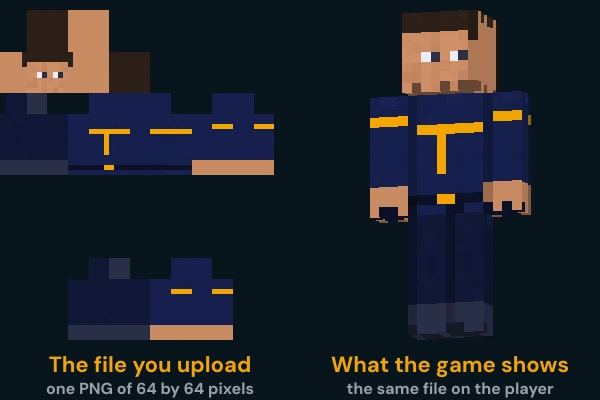
Java Edition
Method 1: Minecraft Launcher
- 1.Open the Minecraft Launcher and click on the Skins tab at the top.
- 2.Click New Skin or select an existing skin to edit.
- 3.Click Browse and select your skin PNG file from your computer.
- 4.Choose your model: Classic (Steve, 4px arms) or Slim (Alex, 3px arms).
- 5.Click Save & Use.
Method 2: Minecraft.net
- 1.Go to minecraft.net and sign in with your Microsoft account.
- 2.Navigate to Profile in the top right menu.
- 3.Under the skin section, click Upload Skin.
- 4.Select your model type and upload your PNG file.
- 5.Click Upload to apply your new skin.
Bedrock Edition
Windows 10/11, Mobile (iOS/Android)
- 1.Open Minecraft and go to the main menu.
- 2.Click the Dressing Room button (character icon) next to your player.
- 3.Select Edit Character and then choose the Classic Skins tab.
- 4.Click Owned, then Import, and select your skin PNG file.
- 5.Choose the model type (Steve or Alex) when prompted, then confirm.
Xbox, PlayStation, Nintendo Switch
Console editions of Bedrock have more limited skin options. You can use the Character Creator to customize your appearance with various body parts, or purchase skin packs from the Marketplace.
Importing your own skin file is something only the Windows, phone and tablet versions offer. On a console, the Character Creator and skin packs are what you have to work with.
Tip: Skin packs you bought in the Marketplace belong to your account. Sign in with the same Microsoft account, or with your PlayStation or Nintendo account on those consoles, and your packs are there on every device.
Important Notes
- --Skins must be PNG files. Java Edition takes 64x64 or the older 64x32 layout, and Bedrock Edition also takes 128x128.
- --On Java Edition only an account that owns Minecraft can change its skin.
- --Servers in offline mode can't show uploaded skins without mods, because Java Edition only displays a skin that carries a signature from Minecraft's own services.
- --A skin you upload stays stored in Minecraft's services after you switch to another one, and sites like NameMC can still look it up.
- --You can store multiple skins in the Launcher and switch between them without re-uploading.