How to Make Custom Minecraft Skins
Create your own unique Minecraft skin from scratch. This guide covers the best tools, essential techniques, and tips for making professional-looking skins.
Recommended Skin Editors
PMCSkin3D
Browser-based 3D skin editor by Planet Minecraft. Features real-time 3D preview, layer management, and easy export.
Free -- Browser-based -- Beginner-friendlyBlockbench
Powerful 3D modeling tool that also supports skin editing. Used by many professional skin creators and resource pack makers.
Free -- Desktop & Browser -- AdvancedSkindex Editor
Part of The Skindex website. Offers both 2D and 3D editing modes with a straightforward interface for quick edits.
Free -- Browser-based -- Beginner-friendlyAseprite / Photoshop / GIMP
General-purpose pixel art and image editors. Full control over every pixel, but requires knowledge of the skin layout template.
Varies -- Desktop -- AdvancedGetting Started
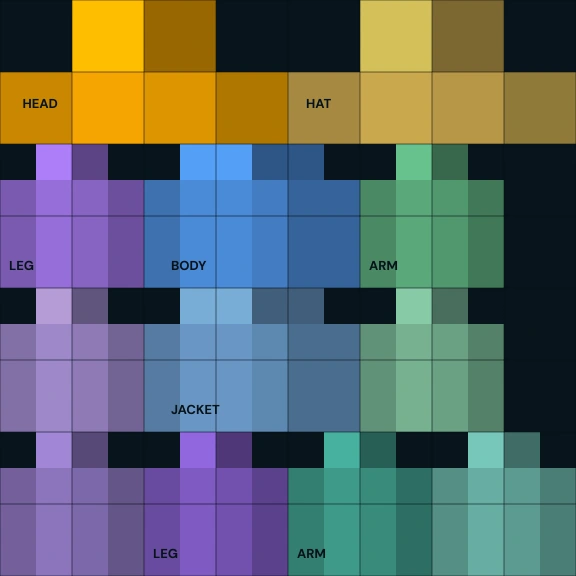
- 1.Choose your editor. If you are new to skin creation, start with a dedicated Minecraft skin editor like PMCSkin3D or Blockbench. These tools show you a 3D preview as you paint.
- 2.Pick your model. Decide between Steve (4px arms) or Alex (3px arms) before you start. This affects arm textures and cannot be easily changed later.
- 3.Start with a base. Begin by laying down flat base colors for the main parts: skin tone, shirt color, pants color. Do not add details yet.
- 4.Add shading. Use slightly darker and lighter versions of your base colors to create depth. Place shadows on the sides and underside of body parts.
- 5.Add details. Eyes, hair, clothing patterns, accessories, and other fine details come last. Use the overlay layer for items that should appear raised.
- 6.Export and test. Export as a 64x64 PNG file, upload it through the Minecraft Launcher, and check how it looks in-game from all angles.
Shading Techniques
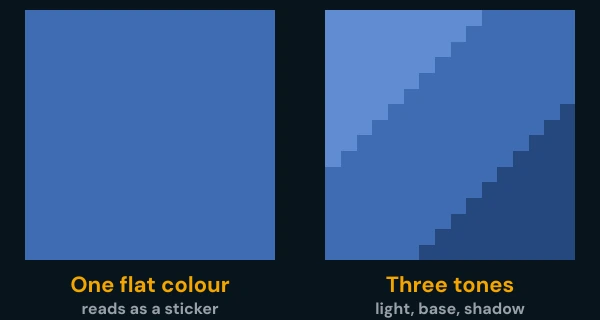
Color Ramp Shading
Create 3-4 shades of each base color (highlight, base, shadow, deep shadow). Use these consistently across the entire skin for a cohesive look.
Hue Shifting
Instead of just darkening colors for shadows, shift the hue slightly. For example, make shadows on warm colors slightly more purple, and highlights slightly more yellow.
Anti-pillow Shading
Avoid placing highlights in the center and shadows along all edges (pillow shading). Instead, pick a consistent light source direction and shade accordingly.
Noise / Dithering
Use sparingly to create texture (fabric, roughness). A checkerboard pattern of two colors can simulate a blend, but overusing it makes the skin look noisy.
Common Mistakes to Avoid
- XUsing too many colors. Limit your palette to 15-25 total colors. Fewer colors create a more cohesive look.
- XNo shading. Flat-colored skins look amateurish. Even 2-3 shade levels make a huge difference.
- XUsing pure black (#000000) for outlines. Use very dark versions of nearby colors instead. Pure black creates harsh, unnatural edges.
- XIgnoring the back and sides. Other players see your skin from all angles. Do not neglect the back of the head, body, and limbs.
- XWrong model selection. Make sure your skin matches the arm width of the model you select. A 4px arm skin on a 3px model will look broken.
- XSaving as JPEG. Always save as PNG. JPEG compression destroys pixel art by introducing artifacts and color blending.
Pro Tips
- +Study skins you admire. Download them and examine how the creator handled shading, color choices, and details.
- +Use the overlay layer creatively for 3D effects like hair that extends past the head, jacket collars, or rolled-up sleeves.
- +Test your skin in different lighting conditions (bright sunlight, caves, underwater) to make sure colors are readable.
- +Keep a reference image nearby of the skin template layout so you know which pixels map to which body part.
- +Consider how your skin looks at a distance. Minecraft renders skins at small sizes, so bold color contrasts read better than subtle details.